On this page · 13 sections
- What is an APNs environment?
- Sandbox vs production: the roles they play
- The aps-environment entitlement: why the profile decides
- Which build uses which environment
- Why notifications work in development but not in production
- Generating the .p8 APNs authentication key
- Uploading the key to Firebase
- APNs tokens vs Firebase identifiers
- What to check in Xcode
- Delivery is not the same as presentation
- Reading APNs error codes
- How eCorpIT can help
- References
Summary. Apple Push Notification service (APNs) has two environments, sandbox (development) and production, and every link in the push chain must match. Builds run from Xcode with a development profile get sandbox device tokens, while TestFlight, Ad Hoc and App Store builds get production tokens. Xcode derives the aps-environment entitlement from your provisioning profile, and a distribution profile allows only production. Send each token to its matching endpoint, and give Firebase an APNs key that covers the environment you're testing.
Many iOS developers hit this problem at some point. Push notifications arrive reliably while you test from Xcode, then stop as soon as the app reaches TestFlight or the App Store. Nothing in the app's code may have changed, so it looks like a code bug. Very often it is an environment mismatch somewhere in the delivery chain.
This guide explains what each environment does, why aps-environment isn't a value you simply type in, how to create the .p8 key, how to upload it to Firebase, how APNs tokens differ from Firebase identifiers, and what to check in Xcode before you ship.
About this article. This guide is based on Apple's documentation for APNs and the User Notifications framework, and on Firebase's Cloud Messaging guides for Apple platforms and Flutter, as checked on 30 September 2026. Portal and console screens change from time to time, so menu names may differ slightly in your account. Researched with AI assistance and reviewed by our editorial team.
What is an APNs environment?
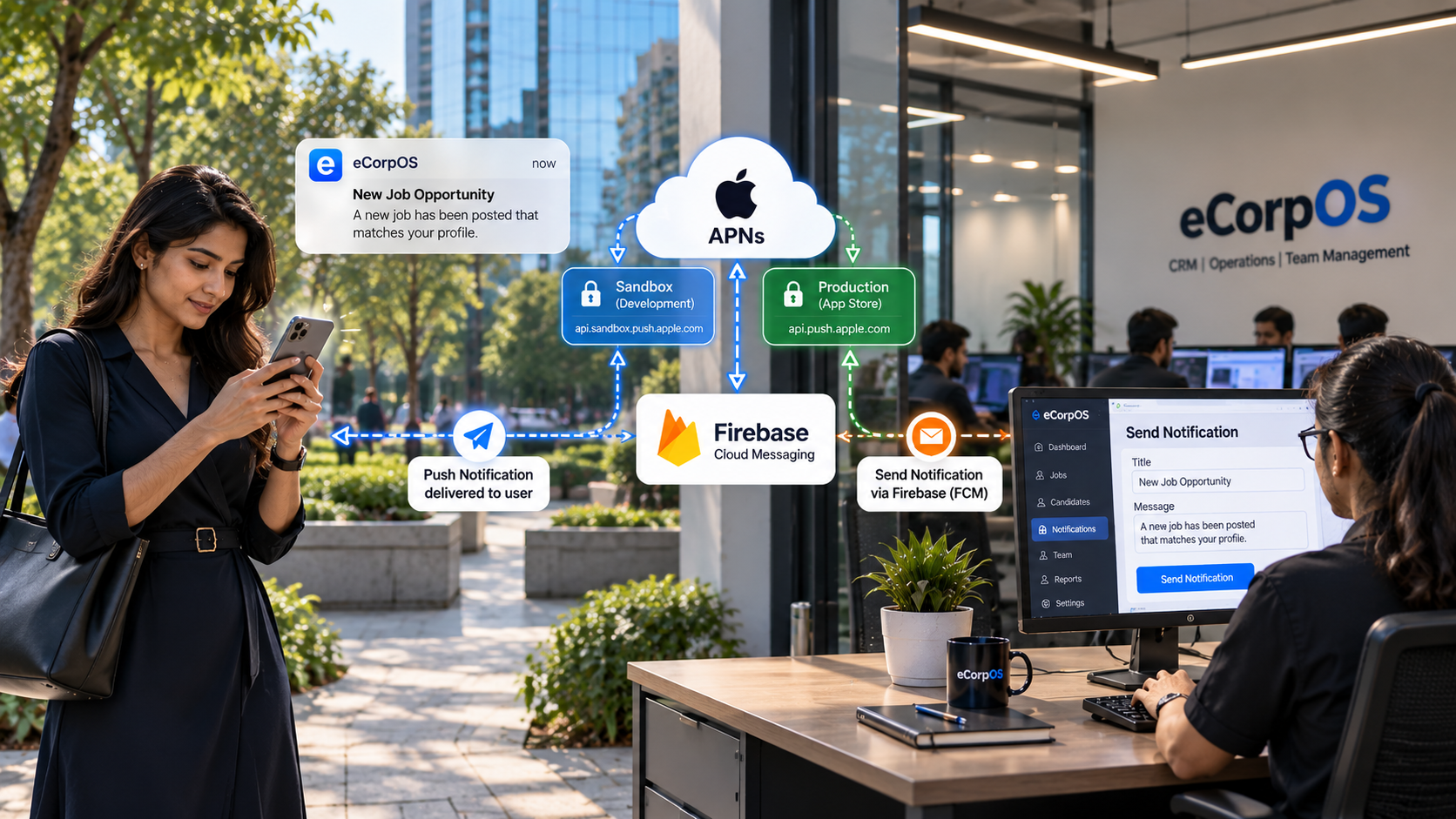
When your app registers for remote notifications, APNs gives it a device token. Apple describes this token as effectively the address of your app on that device, and every app needs its own token, even on the same device. Your provider server, or Firebase acting for you, uses that address to send notifications through APNs.
APNs runs its two environments on two servers:
- Development (sandbox) server:
api.sandbox.push.apple.com
- Production server:
api.push.apple.com
Both accept HTTP/2 over TLS 1.2 or later on port 443, or port 2197 if you need to let APNs traffic through a firewall that blocks other HTTPS traffic. Apple's guidance is to use the production server for shipping apps and the development server for testing. Apple also says the development environment is the same thing as the sandbox environment, so the two names are interchangeable.
Sandbox vs production: the roles they play
| Aspect | Sandbox (development) | Production |
|---|---|---|
| Purpose | Testing while you build | Real users on shipping builds |
| APNs server | api.sandbox.push.apple.com |
api.push.apple.com |
| Device tokens | Issued to development builds | Issued to production builds |
| Typical builds | Run from Xcode with a development profile | TestFlight, Ad Hoc and App Store builds |
A device token belongs to one environment. Apple's archived technical note on push troubleshooting says each push environment issues a different token for the same device, and that APNs treats a token sent to the wrong environment as invalid and discards the notification. Apple's current error reference says the same about BadDeviceToken: check that the token matches the environment.
So the environment isn't a cosmetic setting. It decides which endpoint can deliver to which build.
The aps-environment entitlement: why the profile decides
Your app's code signature includes an entitlement called aps-environment, which tells the system whether to register with the development or the production APNs environment. It is used by both the User Notifications and PushKit frameworks.
Apple's documentation explains why it rarely behaves like a setting you control. Xcode sets the value from your app's current provisioning profile: a development profile gives development, while production profiles and TestFlight builds use production. Apple notes that these defaults can be modified, but any value you set still has to be allowed by the provisioning profile.
An Apple Developer Technical Support engineer explained the mechanism on the developer forums. A provisioning profile carries an allowlist of entitlements, and for aps-environment a distribution profile's allowlist always contains production. That's why a developer who tried to force development onto a distribution build couldn't do it.
Two practical lessons follow:
- Don't try to hard-code the value. Treat
aps-environmentas something your signing setup derives, and fix the signing inputs instead.
- Add the capability rather than typing the key. Apple says you add this entitlement by enabling the Push Notifications capability in Xcode.
Which build uses which environment
Use this as a quick reference. What decides the environment is the provisioning profile the build is signed with, not the words Debug or Release.
| How the app is installed | Signed with | APNs environment |
|---|---|---|
| Run from Xcode onto a device | Development profile | Sandbox (development) |
| Distributed through the App Store | Distribution profile | Production |
| TestFlight build | Distribution profile | Production |
| Ad Hoc distribution build | Distribution profile | Production |
Apple's technical note confirms the split: development builds connect to the sandbox, while Ad Hoc and distribution builds connect to production. A Release build configuration run from Xcode with a development profile is still a sandbox build, because the profile hasn't changed. Likewise, a Debug configuration doesn't by itself mean sandbox. The profile is what counts.
Why notifications work in development but not in production
If pushes reach your Xcode builds and then stop on TestFlight or the App Store, check these four causes.
1. Your backend is still sending to the sandbox endpoint
Production builds produce production device tokens. If your server keeps sending them to the sandbox host, APNs rejects them, typically with BadDeviceToken. Apple's technical note suggests running a separate provider instance for each environment to avoid exactly this.
2. Your credentials can't authenticate production requests
APNs keys can be limited to Sandbox or Production, and APNs returns BadEnvironmentKeyIdInToken when the key ID in your token doesn't match the environment. In Firebase, if the only credentials you've configured can't authenticate production requests, production delivery can fail.
3. The app was never signed with the right entitlement
If aps-environment is missing from the final signature, the app can't register properly. Apple's technical note says the usual reasons are that push notifications weren't enabled for the App ID, or that the distribution provisioning profile wasn't regenerated after enabling them.
4. An old token is being used
Apple says your app should register and receive its device token each time it launches, and its technical note warns against storing a token and reusing it, because the token can change. A token captured from a development build won't work for a production install.
The underlying fix is the same in every case: make each part of the delivery chain consistent with the environment.
Generating the .p8 APNs authentication key
Apple supports two ways for a server to authenticate with APNs: certificates and tokens. Token-based authentication uses a .p8 signing key. Apple describes it as stateless, and notes that you can use the same token from several provider servers, and one token for all or some of your company's apps. Creating keys needs the Account Holder or Admin role.
Steps
- Sign in to your Apple Developer account and open Certificates, Identifiers & Profiles.
- Choose Keys, then click the add (+) button.
- Enter a key name and select Apple Push Notification service (APNs).
- Click Configure next to Apple Push Notification service, then choose the environment and the key type, Team Scoped or Topic Specific.
- Continue, register the key, and download the
.p8file.
- Note the Key ID, a 10-character string, and your 10-character Team ID. Both go into every authentication token you create.
Environment-specific keys and older keys
Apple now offers environment-specific keys. Team-scoped keys work for any topic in your team but are restricted to either Sandbox or Production, with a maximum of two keys per environment. Topic-specific keys cover chosen topics within a single environment, with up to 200 keys per environment and up to 400 topics per key.
Existing team-scoped keys that work in both environments are still supported, so an older key isn't invalid. Apple still recommends separate, environment-specific keys, because they create distinct workflows and make your development process safer to manage.
Things to know before you continue
- Store the file safely. The
.p8file is the private key that signs your authentication tokens, and it must stay private. Apple doesn't keep a copy in your developer account, and you can't download it again, so save it somewhere secure straight away.
- Replace a compromised key carefully. Create a new key first, move your servers to it, then revoke the old one. Apple also recommends closing your existing HTTP/2 connections to APNs and opening new ones.
- Refresh tokens on schedule if you sign them yourself. If you send directly to APNs, refresh your token no more than once every 20 minutes and no less than once every 60 minutes. APNs rejects tokens more than an hour old with
ExpiredProviderToken, and it returnsTooManyProviderTokenUpdatesif you refresh too often. Firebase handles this for you.
Uploading the key to Firebase
Firebase Cloud Messaging (FCM) sits between your backend and APNs. For Apple devices, FCM needs your APNs credentials so it can talk to Apple on your behalf.
Steps in the Firebase console
- In the Firebase console, go to Settings, then General.
- Click the Cloud Messaging tab.
- Under APNs authentication key in the iOS app configuration section, click Upload.
- Upload your development key, your production key, or both. Firebase requires at least one.
- Select the
.p8file and enter its Key ID. Firebase's Flutter guide also asks for your Apple team ID, so keep it ready.
- Click Upload, or Save, to finish.
Our recommendation
Firebase doesn't require both keys. But if your team tests both development and production builds, upload credentials that cover each environment. This keeps the configuration explicit and matches Apple's advice to use environment-specific keys. If you upload only a development key, confirm that your production builds can still be authenticated before you release.
APNs tokens vs Firebase identifiers
This is a common source of confusion. When you use Firebase, there are two different identifiers, and they aren't interchangeable:
- The APNs device token is issued by Apple when your app registers with APNs.
- The FCM registration token is issued by Firebase, and it is what you normally use to target a device from your backend or the Firebase console.
The flow looks like this:
            iOS app
   ↓  registers with APNs
APNs device token
   ↓  passed to Firebase Messaging
FCM registration token
   ↓  stored by your backend
Your server / Firebase console
   ↓
FCM  →  APNs  →  iPhone
Firebase's current Apple-platform guide also describes registering with a Firebase Installation ID (FID), which you can use to target notifications. You opt in with the FirebaseMessagingInstallationIdEnabled key in your app's Info.plist, and the SDK delivers the FID through a messaging delegate method. Check which identifier your integration and SDK version use, and never send an APNs token where Firebase expects one of its own identifiers.
Mapping the APNs token
By default, the FCM SDK maps the APNs token for you through method swizzling, which you can turn off with the FirebaseAppDelegateProxyEnabled flag. Firebase says that if you've disabled swizzling, or you're building a SwiftUI app, you must map the token yourself:
            func application(_ application: UIApplication,
                 didRegisterForRemoteNotificationsWithDeviceToken deviceToken: Data) {
    Messaging.messaging().apnsToken = deviceToken
}
SwiftUI apps provide this app delegate through the UIApplicationDelegateAdaptor property wrapper. Flutter is different: Firebase says the FCM Flutter plugin requires method swizzling on Apple devices, so don't disable it in a Flutter app.
Wait for the APNs token before making FCM calls
Firebase's Flutter guide warns that in iOS SDK 10.4.0 and later, the APNs token must be available before you make FCM API requests, and that it isn't guaranteed to have arrived yet. In Flutter, check getAPNSToken() before calling the FCM token APIs.
Handle token refresh
Don't tie a user's account permanently to one FCM token. Firebase says the registration token may change when the app is restored on a new device, when the user reinstalls the app, or when they clear app data. Store the current token and update your backend whenever it changes:
- Native iOS: implement
messaging(_:didReceiveRegistrationToken:), which Firebase says fires at each app start and whenever a new token is generated.
- Flutter: subscribe to
FirebaseMessaging.instance.onTokenRefresh, which Firebase describes the same way.
What to check in Xcode
Work through this list on the target that ships to users. If you're moving to the latest toolchain as well, our Xcode 27 and Swift 6.4 guide covers the wider changes.
1. Add the Push Notifications capability
Open the target, go to Signing & Capabilities, click + Capability, and add Push Notifications. This is what adds the aps-environment entitlement.
2. Confirm signing and team
Select the correct team. With Automatically manage signing, Xcode chooses the profile for each build. With manual signing, make sure the profile matches the build type: development for local runs, distribution for archives.
3. Match the bundle identifier everywhere
The bundle ID in Xcode must match the App ID in your developer account, the app registered in Firebase, and the GoogleService-Info.plist in your project. Apple says the push topic is generally your app's bundle ID, sometimes with a suffix for particular push types. A mismatch can produce errors such as DeviceTokenNotForTopic.
4. Check the App ID in the developer portal
Make sure Push Notifications is enabled for the App ID. If you enabled it after creating a distribution profile, regenerate the profile.
5. Add background modes only if you need them
To receive background (silent) notifications, Apple says you must add the Background Modes capability and select Remote notifications. Firebase's Flutter guide enables both Background fetch and Remote notifications as part of its setup. For a native app that sends only ordinary alerts, check whether you need them.
6. Verify the runtime code
Confirm that your code requests notification authorisation, calls registerForRemoteNotifications(), and, where required, sets Messaging.messaging().apnsToken.
7. Inspect the built app
Don't assume the entitlement is correct. Check what was actually signed into the build:
            # Entitlements embedded in the built app, as XML
codesign -d --entitlements - --xml /path/to/YourApp.app

# Provisioning profile embedded in the app
security cms -D -i /path/to/YourApp.app/embedded.mobileprovision
Look for aps-environment. It should read development for local runs and production for TestFlight and App Store builds.
8. Test on a real device, with the right build type
Test development pushes from an Xcode-installed build. Then test production pushes from a TestFlight build, which is signed for production. Don't judge production behaviour from a build installed straight from Xcode. Our iOS 27 API changes and testing checklist covers the rest of a release test pass.
9. Log both tokens
During development, log the APNs device token and the FCM registration token. Confirm that Firebase Messaging receives the APNs token, and that your backend stores the current FCM registration token rather than an old one.
Delivery is not the same as presentation
A correct environment setup doesn't guarantee that someone sees a banner. A push passes through several stages, and each can fail or behave differently:
            FCM accepts the message
   ↓
APNs accepts the message
   ↓
The device receives the push
   ↓
iOS decides how to handle it
   ↓
Banner / sound / badge / background handling
An APNs 200 response means APNs accepted the request. It doesn't mean the person saw the notification. Apple calls APNs a best-effort service that may reorder notifications sent to the same device token, with exact behaviour depending on how the person uses your app and on the device's power state. Depending on battery, connectivity and other conditions, APNs may deliver a notification immediately, defer it, try several times, or discard it. If it can't deliver several notifications for the same app while a device is offline, it keeps only one.
Check notification permission first
Even with a perfect production setup, someone who has turned notifications off will see nothing. Check the current status:
            UNUserNotificationCenter.current().getNotificationSettings { settings in
    print(settings.authorizationStatus)
}
Separate the problem into layers
When notifications go missing, work out which layer is failing before you change anything:
- APNs registration or token problem: no valid device token is being produced or forwarded.
- FCM token problem: the backend holds an old or wrong registration token.
- Authorisation problem: the person hasn't allowed notifications.
- Delivery problem: APNs rejected or throttled the request. Read the error code.
- Presentation problem: the push arrived, but the app or system chose not to show it, for example because of how your
UNUserNotificationCenterDelegatehandles foreground notifications, the payload type, or the person's notification settings.
Silent notifications need extra care. Apple treats them as low priority, doesn't guarantee their delivery, and may throttle them, and it advises sending no more than two or three an hour. Those limits are disabled when you test from Xcode, so a silent push that works in testing can behave differently on real users' devices.
Reading APNs error codes
If you send to APNs yourself, or read delivery logs, these error strings point at environment and credential problems:
| Error | What Apple says it means | Likely fix |
|---|---|---|
BadDeviceToken |
The token is invalid, or doesn't match the environment | Send sandbox tokens to sandbox and production tokens to production |
BadEnvironmentKeyIdInToken |
The key ID in the provider token doesn't match the environment | Use a key scoped to the environment you're sending to |
BadCertificateEnvironment |
The client certificate doesn't match the environment | Use the matching certificate, or move to a .p8 key |
DeviceTokenNotForTopic |
The device token doesn't match the specified topic | Check the bundle ID and topic |
InvalidProviderToken |
The provider token isn't valid, or its signature can't be verified | Check the Key ID, Team ID and .p8 file |
ExpiredProviderToken |
The provider token is stale | Generate a fresh provider token |
Unregistered |
The device token is inactive for the topic | Stop sending to it unless the app registers the same token again |
Apple says not to retry requests that fail with BadDeviceToken, DeviceTokenNotForTopic, Forbidden, ExpiredToken, Unregistered or PayloadTooLarge. You can retry 5XX responses after 15 minutes, ideally with back-off, and TooManyRequests after a delay.
For testing, the apns-unique-id response header is available only in the development environment. Use it to look up a notification's delivery log in the Push Notifications Console, whose delivery logs also cover only the development environment.
How eCorpIT can help
eCorpIT is a Gurugram-based technology organisation, founded in 2021, assessed at CMMI Level 5 and MSME certified, with senior-led engineering teams working across AWS, Microsoft and Google platforms. Our iOS app development team in India audits push setups end to end: signing and aps-environment, APNs keys per environment, the Firebase configuration, and how your backend stores and refreshes tokens. For cross-platform apps, our Flutter app development team handles the FCM plugin's iOS requirements. If you need more capacity for a release, you can hire iOS developers from our team. Talk to us at /contact-us/.
Last updated: 30 September 2026.