On this page · 13 sections
- The core idea: templates, not pixels
- Entitlements: the first decision
- Core integration: scenes and the simulator
- General-purpose templates available to every category
- Audio: Now Playing and sports mode
- Navigation: the map experience
- Map panels: the new system in iOS 27
- Location and information: parking, EV charging and food ordering
- Communication, actions and alerts
- Instrument cluster
- A practical map: which entitlement unlocks what
- How eCorpIT can help
- References
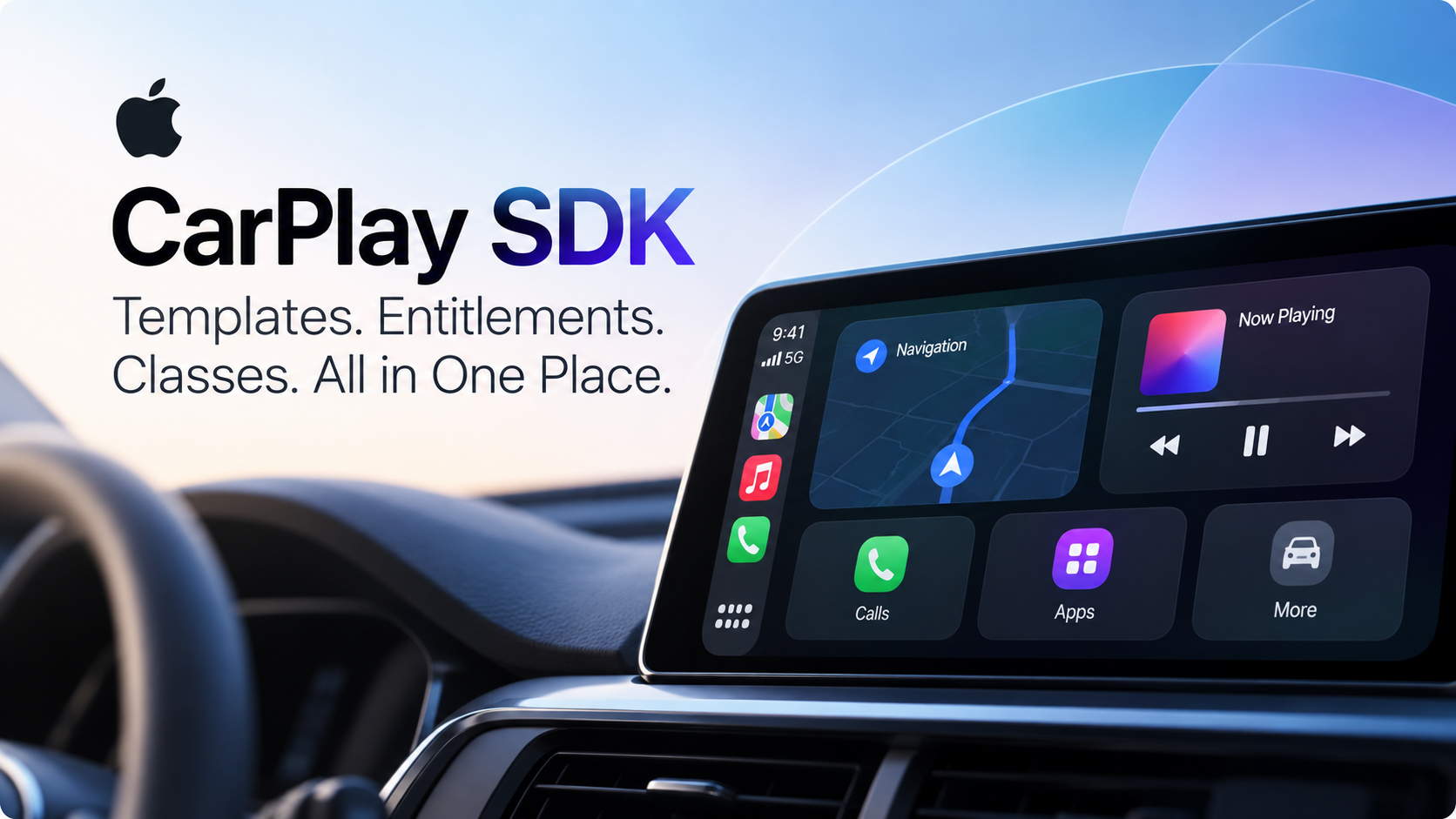
Summary. A CarPlay app doesn't draw its own screens. It fills in Apple's templates, and CarPlay renders them on the car's display. Every CarPlay app needs one of six category entitlements from Apple: audio, communication, EV charging, navigation, parking or quick food ordering. The entitlement decides which templates you can use. Navigation apps are the one category that draws its own map, and iOS 27 gives them a new map panel system.
CarPlay isn't one API. It is a framework built around a deliberate constraint: your app supplies structured content, and the system handles touch target size, font size, font colour and highlighting for you. That constraint also makes the SDK relatively easy to map. This reference follows the way Apple's own documentation groups the framework, as of iOS 27.
About this article. This reference reflects Apple's CarPlay documentation and the iOS & iPadOS 27 release notes as checked on 30 September 2026. Apple adds templates and classes across iOS releases, so check the live documentation before you design a new integration. Researched with AI assistance and reviewed by our editorial team.
The core idea: templates, not pixels
Apple's documentation states the model plainly. You add the templates you want and customise them to suit your content, but the framework controls certain aspects of the interface elements, such as touch target size, font size, font colour and highlights. CarPlay features run only when the device supports CarPlay and is connected to a suitably equipped vehicle. When someone runs your app from their car, the system generates and hosts your app's CarPlay interface, and if the device doesn't support CarPlay, the system never tries to reach your app's CarPlay features.
Other frameworks can drive parts of the experience. Messaging apps can use SiriKit to read and send messages, VoIP apps can use CallKit to manage calls, often alongside SiriKit, and navigation apps can use MapKit.
There is one important exception to the templates-only rule. Navigation apps are the only category with access to the window CarPlay shows on the car's screen, and they use it to draw their own map. Even then, drivers never interact with that map directly. The map template sits on top of it as the control layer, with the navigation bar and map buttons.
The practical consequence: CarPlay isn't a place to port your existing iPhone UI. It is a place to describe your content in structured form and let Apple's rendering handle consistency, accessibility and the driving-safety constraints you would otherwise have to rebuild yourself.
Entitlements: the first decision
To integrate with CarPlay at all, you must request the entitlement for your app's category through Apple's CarPlay contact page and agree to the CarPlay Entitlement Addendum. Apple reviews each request against predefined criteria, and approved entitlements are added to your developer account as managed capabilities.
| Entitlement key | Category |
|---|---|
com.apple.developer.carplay-audio |
Audio |
com.apple.developer.carplay-communication |
Communication |
com.apple.developer.carplay-charging |
EV charging |
com.apple.developer.carplay-maps |
Navigation |
com.apple.developer.carplay-parking |
Parking |
com.apple.developer.carplay-quick-ordering |
Quick food ordering |
Once approved, you enable the CarPlay capabilities on your App ID, create a new provisioning profile, and add an Entitlements.plist file whose keys match those capabilities. CarPlay reads that file to decide which parts of the framework your app may use. CarPlay apps are also subject to an extra set of App Store review guidelines.
Core integration: scenes and the simulator
Every CarPlay app is built on the same foundations, whatever templates it uses:
CPTemplateApplicationSceneis the CarPlay scene that controls your app's user interface.
CPTemplateApplicationSceneDelegatereceives that scene's life-cycle events.
CPSessionConfigurationprovides vehicle properties and configuration, including limits the car imposes, such as whether a keyboard can be shown and how long lists can be, and the content style the car picks for the ambient light level.
You declare the scene in your app's scene manifest in Info.plist, under the CPTemplateApplicationSceneSessionRoleApplication role, and name your delegate class there. In the delegate, implement templateApplicationScene(_:didConnect:) and use the interface controller it provides to set your root template. Navigation apps implement templateApplicationScene(_:didConnect:to:) instead, because it also hands over the window, where you install your map-drawing view controller. Because CarPlay is scene-based, it fits naturally alongside iOS 27's UIScene requirement.
Apple also documents how to support older iOS versions, such as iOS 13 and earlier. For testing, Xcode's Simulator can open a CarPlay window: run your app in the iOS simulator and choose I/O > External Displays > CarPlay. The window is 800 x 480 pixels at @2x, and it has extra options for navigation apps. It won't show your app unless the app has the necessary entitlements, and Apple recommends testing in a vehicle or aftermarket unit too; a device with wireless CarPlay lets you debug from Xcode while it runs.
General-purpose templates available to every category
Three templates form the baseline vocabulary that apps in any CarPlay category can use:
CPListTemplatedisplays and manages a list of items.
CPGridTemplatedisplays and manages a grid of items.
CPTabBarTemplateis a container that presents other templates as tabs.
All of them inherit from CPTemplate, the abstract base class for every template. You don't use it directly or subclass it; you always use one of Apple's prebuilt templates. The CPBarButtonProviding protocol defines how templates supply navigation bar buttons.
These templates don't need an extra entitlement, but remember that your app still needs one of the six category entitlements before it can appear in CarPlay at all. If your CarPlay presence is simple, such as a list, a grid of choices or a tabbed structure, these may be all you need.
Audio: Now Playing and sports mode
Apple lists the audio templates as available only to apps with the audio entitlement. The centrepiece is CPNowPlayingTemplate, a shared system template. Shared means you don't create your own instance: CarPlay provides one that you configure. It displays information from MPNowPlayingInfoCenter and MPNowPlayingSession, including playback controls and the current album and artist. You push it onto your navigation hierarchy, because it can't be presented modally, and if you enable its Album-Artist and Up Next buttons you must register an observer that adopts CPNowPlayingTemplateObserver.
The Now Playing screen also has a dedicated sports layout. CPNowPlayingModeSports, added in iOS 18.4, is a layout for live or recorded playback of a sporting event with exactly two teams. Its supporting classes are:
CPNowPlayingSportsClock, the time elapsed in an event whose clock counts up, or the time remaining in an event or period whose clock counts down.
CPNowPlayingSportsEventStatus, the status of the event.
CPNowPlayingSportsTeam, one of the two teams.
CPNowPlayingSportsTeamLogo, a team's logo image or, when no image is available, its abbreviation or initialism.
CPSportsOverlay, added in iOS 26.4, an overlay showing left and right team information.
Apple lists these classes in the framework's general class index rather than under the audio heading. Because they describe a Now Playing layout, plan them as part of an audio app's integration. For any app streaming or replaying two-team sports content, this layout is worth knowing about before you reinvent it with generic Now Playing metadata.
Navigation: the map experience
Apple marks the navigation symbols as available only to apps with the navigation entitlement:
CPTemplateApplicationDashboardSceneand its delegate manage your app's window on the CarPlay Dashboard, including shortcut buttons shown when no navigation session is active.
CPMapTemplateis the control layer over the base view where your app draws its map.
CPSearchTemplatelets drivers search for a destination and see a list of results.
CPVoiceControlTemplateshows a voice control indicator during audio input.
Around the map sits a vocabulary for guidance, which Apple groups under maneuvers and under routes, lanes and junctions:
CPManeuverdescribes a single navigation instruction, withCPManeuverStateandCPManeuverTypedescribing its states and types.
CPRouteInformationdescribes the characteristic elements of a route.
CPLane,CPLaneGuidanceandCPLaneStatuscover lane-level guidance: a lane's characteristics, the number of lanes with instruction variants, and a lane's status or preferability.
CPJunctionTyperepresents types of roadway junction.
CPNavigationWaypointandCPRouteSegment, both added in iOS 26.4, represent a point of interest along a route and a segment of a route.
Map panels: the new system in iOS 27
iOS 27 adds a panel system for navigation apps, and it is easy to miss that CPMapPanel belongs to a small class family:
| Base class | Map subclass | What it does |
|---|---|---|
CPPanel |
CPMapPanel |
Common behaviour for panels shown over your content; the map panel overlays navigation information on part of your map |
CPPanelButtonConfiguration |
CPMapPanelButtonConfiguration |
Common button layout; the map version adds a primary and optional secondary action button, plus travel estimates |
CPPanelItem |
CPMapPanelItem |
Common behaviour for items in a panel section; the map version holds trip, route, waypoint and charging station details |
You never create the base classes directly: you instantiate the map subclasses, which are currently the only subclasses Apple documents. A CPMapPanelSection, a plain NSObject subclass, groups a title with one or more items; Apple's example is a section of upcoming charging stations.
To use a panel, build a CPMapPanel from sections and a button configuration, then show it from your CPMapTemplate with showPanel(_:completion:) or pushPanel(_:completion:). CarPlay layers it over part of your map. A delegate adopting CPMapPanel.Delegate hears when the panel appears and disappears, and CarPlay updates the interface if you change the sections after showing it. Button configurations can't be changed once the panel exists. Items can show trip details, travel estimates, route choices, route costs and consumption, charging station connection details and navigation waypoints, and each can take a tap handler.
The iOS 27 release notes show why the family deserves attention. Three of the six CarPlay fixes involve it directly: the panelDidHide delegate method not being called, CPMapPanel not dismissing when the close button is tapped, and the symbol button handler of CPMapPanelButtonConfiguration not being called. A fourth fixed panel items in the navigation session's ETA tray not receiving focus. If you tested panels on an iOS 27 beta, test them again on the release. Our iOS 27 API changes checklist covers the rest of the SDK.
Location and information: parking, EV charging and food ordering
Apple marks these templates as available only to apps with the parking, EV charging or food-ordering entitlements:
CPPointOfInterestTemplateshows a map of selectable points of interest, with a scrollable picker and a detail card for the selected place. Its delegate hears about changes to the visible map region, so you can update the points shown.
CPInformationTemplateshows information about a point of interest, food order, parking location or charging location, as a list of items with up to three actions.
CPTextButtonis the stylised title button those actions use.
Apple also publishes a dedicated guide to integrating CarPlay with quick-ordering apps.
iOS 27 also adds two classes whose names suggest charging and multi-stop trips: CPChargingStationConnection and CPMultiStopCardConfiguration. Apple currently lists both in the framework's general class index without any description, so don't assume which entitlement they belong to until Apple documents them. The one related clue is that map panel items can show charging station connection details. If you are building in this space, our EV charging app development team works on charging apps.
Communication, actions and alerts
CPContactTemplate is listed as available only to apps with the communication entitlement. It shows information about a person or business, with up to four contextual actions, and CarPlay provides ready-made buttons for common ones, such as calling or messaging. You can push it or present it modally. For the calls and messages themselves, communication apps can use CallKit and SiriKit.
Apple lists CPActionSheetTemplate (a modal action sheet), CPAlertTemplate (a modal alert) and CPAlertAction (a single action on either) in a separate actions and alerts group, not tied to one category.
Instrument cluster
The instrument cluster is the display in front of the driver, separate from the main CarPlay screen. The framework has four symbols for it, all added in iOS 15.4: CPInstrumentClusterController, CPInstrumentClusterControllerDelegate, CPTemplateApplicationInstrumentClusterScene and CPTemplateApplicationInstrumentClusterSceneDelegate. Apple's pages for these symbols currently have no descriptions, so treat instrument cluster support as its own scene and its own research task, separate from your main CarPlay integration.
A practical map: which entitlement unlocks what
| Entitlement | What it unlocks |
|---|---|
| Any of the six | CPListTemplate, CPGridTemplate, CPTabBarTemplate, CPActionSheetTemplate, CPAlertTemplate |
| Audio | CPNowPlayingTemplate, plus the sports mode classes that shape its layout |
| Navigation | The window for drawing your map, CPMapTemplate, CPSearchTemplate, CPVoiceControlTemplate, the dashboard scene, guidance types and iOS 27 map panels |
| Parking, EV charging, quick food ordering | CPPointOfInterestTemplate, CPInformationTemplate, CPTextButton |
| Communication | CPContactTemplate |
Two caveats apply. Apple ties map panels to navigation apps through the map template rather than listing them under an entitlement, and it hasn't said which category CPChargingStationConnection and CPMultiStopCardConfiguration belong to, so the table leaves them out.
The most useful way to read the whole framework is entitlement-first. Decide what your app fundamentally does, whether that is playing audio, navigating, parking, charging, ordering food or communicating, and that decision sets which templates you can use. Everything else, from lane guidance to the panel base classes, supports one of those flows in more depth.
How eCorpIT can help
eCorpIT is a Gurugram-based technology organisation, founded in 2021, assessed at CMMI Level 5 and MSME certified, with senior-led engineering teams working across AWS, Microsoft and Google platforms. Our iOS app development team in India helps you prepare the CarPlay entitlement request for your category, set up the CarPlay scene and templates, and build navigation features such as the new iOS 27 map panels, with testing planned for both the Simulator's CarPlay window and a real vehicle or aftermarket unit, as Apple recommends. If you need more capacity for a CarPlay project, you can hire iOS developers from our team. Talk to us at /contact-us/.
Last updated: 30 September 2026.