On this page · 10 sections
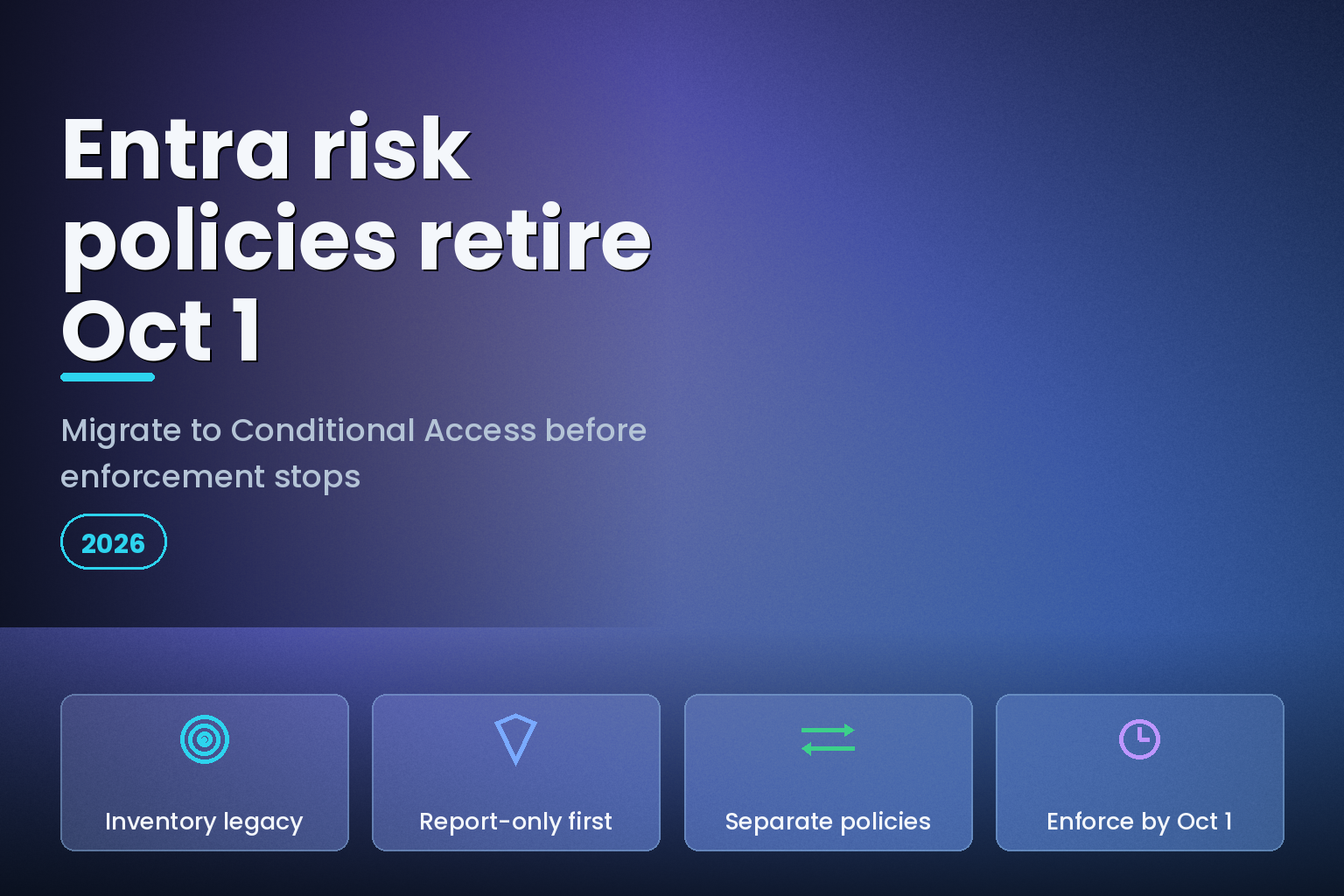
Summary. Microsoft retires the legacy user-risk and sign-in-risk policies in Entra ID Protection on October 1, 2026. Those policies have been read-only in the ID Protection blade since July 2025, and after the retirement date they stop enforcing, so a compromised account that should be blocked or challenged will pass straight through. The fix is to recreate both as risk-based Conditional Access policies, which need an Entra ID P2 licence. This matters because Microsoft Entra tracks about 600 million identity attacks a day, blocks roughly 7,000 password attacks a second, and reports that 97% of identity attacks are password spray. Phishing-resistant multifactor authentication still blocks more than 99% of identity attacks, and a credential-driven breach costs a global average of $4.44 million per IBM's 2025 figures. This guide migrates both policies in five steps, in report-only mode first, so you enforce risk controls without locking anyone out.
If you have ever turned on "user risk policy" or "sign-in risk policy" in Entra ID Protection, this retirement affects you. The migration is not complicated, but the order matters, and one wrong toggle can lock every risky user out of their account at once. Here is what changes, how user risk and sign-in risk differ, and the exact steps to move both to Conditional Access safely.
What is retiring, and what breaks on October 1, 2026
Entra ID Protection historically shipped two built-in policies: a user risk policy and a sign-in risk policy. You could enable them directly in the ID Protection portal. Microsoft has moved both to a read-only state in that blade since July 2025 and set the legacy policies to retire on October 1, 2026. After that date the legacy policies stop enforcing.
The failure mode is quiet, which is what makes it dangerous. Nothing errors out. Your risky-sign-in challenges and risky-user password resets simply stop firing, and accounts that ID Protection flags as compromised keep their access. If you never migrate, you lose an automated control that sits in front of every user, right as identity attacks keep climbing. Microsoft reported identity-based attacks rose 32% in the first half of 2025 against the same period a year earlier.
The replacement is risk-based Conditional Access. Conditional Access can read the same Sign-in risk and User risk signals that ID Protection calculates, and act on them with the full Conditional Access control set. Both the legacy policies and the Conditional Access versions need Microsoft Entra ID P2, which is where ID Protection lives, so the migration does not change your licensing requirement.
User risk versus sign-in risk
These two signals answer different questions, and they map to different remediation. Sign-in risk asks whether this specific sign-in looks like it is not the real user, using signals such as an anonymous IP address, an atypical travel pattern, or an unfamiliar sign-in property. User risk asks whether the account itself is probably compromised, using signals such as leaked credentials found in a public dump or a pattern of risky activity over time.
| Attribute | Sign-in risk | User risk |
|---|---|---|
| Question answered | Is this sign-in the real user? | Is this account compromised? |
| Example signals | Anonymous IP, atypical travel, unfamiliar sign-in | Leaked credentials, risky activity over time |
| Risk levels to act on | High and Medium | High |
| Recommended grant control | Require multifactor authentication | Require secure password change |
| How the user clears it | Completes MFA to prove identity | Completes MFA, then changes password |
| Session control to add | Sign-in frequency reauthentication | Not typically required |
The remediation logic is built to be self-service. When a sign-in risk policy requires MFA, the user proves identity with a registered method and the risk clears automatically. When a user risk policy requires a password change, the user completes MFA and then sets a new password, which closes out the compromise. On modern tenants a single "require risk remediation" grant control can dynamically pick the right action based on the detected risk and the user's registered methods. Where policies overlap, Block takes precedence over everything, and require risk remediation overrides require password change.
The 5-step migration
Work through these in order. The whole point of report-only mode is to see the blast radius before you enforce, so do not skip it.
- Inventory what you have. In the Microsoft Entra admin center, open ID Protection and note whether the user risk policy, the sign-in risk policy, or both are enabled, which users they target, and which are excluded. This is your baseline. You will recreate the same targeting in Conditional Access.
- Create a sign-in risk Conditional Access policy in report-only mode. Under Conditions, set Sign-in risk to configure Yes and select High and Medium. Under Grant, choose Require multifactor authentication, and add the sign-in frequency session control to force reauthentication on risky sign-ins. Assign it to the same users as the legacy policy, and set Enable policy to Report-only.
- Create a separate user risk Conditional Access policy in report-only mode. Under Conditions, set User risk to High. Under Grant, choose Require password change (which also enforces MFA first). Do not combine sign-in risk and user risk in one policy; Microsoft's guidance is to keep them in two separate Conditional Access policies so each risk type gets its own remediation.
- Exclude your break-glass accounts and watch report-only for a week. Add at least one emergency-access account to the exclusions on both policies so a bad rule can never lock you out entirely. Then review the report-only results in the sign-in logs, which show exactly who would have been challenged or blocked, and confirm the numbers match what the legacy policy was doing.
- Flip both policies to On. Once report-only looks right, move the Enable policy toggle from Report-only to On for each policy, and turn the legacy ID Protection policies off. Keep watching the sign-in logs for a few days to catch any user who cannot self-remediate.
| Step | Conditional Access setting | Why it matters |
|---|---|---|
| 1 | Inventory legacy targeting | Recreate identical scope, no coverage gap |
| 2 | Sign-in risk: High + Medium, require MFA | Challenges risky sign-ins in real time |
| 3 | User risk: High, require password change | Forces reset on likely-compromised accounts |
| 4 | Exclude break-glass, run report-only | Prevents a self-inflicted lockout |
| 5 | Toggle to On, disable legacy | Enforces before the October 1, 2026 cutoff |
Legacy policy versus Conditional Access
Moving to Conditional Access is an upgrade, not just a lift-and-shift. The Conditional Access engine gives you controls the legacy blade never had.
| Dimension | Legacy ID Protection policy | Conditional Access risk policy |
|---|---|---|
| Report-only testing | No | Yes |
| Managed through Graph API | Limited | Yes |
| Combine risk with location or device | No | Yes |
| Sign-in frequency controls | No | Yes |
| Diagnostics in sign-in logs | Basic | Detailed per-policy results |
| Supported after October 1, 2026 | No | Yes |
Report-only mode alone justifies the move. It lets you validate a risk policy against real traffic before a single user is affected, which the legacy design never allowed. Combining risk with other Conditional Access conditions, such as requiring a compliant device when user risk is high, is the kind of layered control that turns a blunt block into a targeted one. The same layered thinking shows up in our guide to passkeys versus SMS OTP for WebAuthn migration, where phishing-resistant methods do the heavy lifting.
How to verify the migration worked
Enforcement is only real if you can prove it. After you flip both policies to On, open the sign-in logs in the Microsoft Entra admin center and filter on Conditional Access policy results. Confirm your two new policies appear and show as applied for the sign-ins that carried risk, with the sign-in risk policy issuing an MFA challenge and the user risk policy issuing a password change.
Run a controlled test rather than waiting for a real attacker. Use a test account that is registered for MFA and self-service password reset, then generate a risk signal ID Protection recognises, such as signing in through an anonymised network that scores as anonymous-IP risk. Confirm the sign-in risk policy challenges that sign-in. Separately, confirm that an account ID Protection flags for a leaked credential is prompted to change its password and can clear the flag itself.
Then confirm the old controls are gone: the legacy user risk and sign-in risk policies in the ID Protection blade should read as disabled or retired, so you are not running two overlapping systems. Keep the "risky users" and "risky sign-ins" reports open for a week and watch for anyone who cannot self-remediate. Finally, export the policy configuration and a sample of enforced sign-ins as evidence for your ISO 27001 and DPDP audit trail, because a control you cannot demonstrate is a control you effectively do not have.
Common mistakes to avoid
The first mistake is combining both risk conditions in one Conditional Access policy. Keep them separate so sign-in risk gets MFA and user risk gets a password change; a merged policy applies one grant control to both and mis-remediates half your cases.
The second is forgetting registration. A user can only self-remediate if they are already registered for MFA and self-service password reset. If they are not, the risk policy blocks them and an administrator has to step in. Roll out combined security-information registration before you enforce, or you convert a security control into a help-desk queue.
The third is skipping the break-glass exclusion. A misconfigured risk policy can lock out every targeted user, including administrators, so always exclude at least one emergency-access account. This is the same discipline we apply to other Microsoft hardening deadlines, such as the Kerberos RC4 hard enforcement remediation and the broader July 2026 Patch Tuesday triage: stage the change, keep an escape hatch, then enforce. Identity and server hardening move together, which is why the same teams handling the SharePoint RCE machine-key remediation usually own this migration too.
India-specific considerations
For Indian enterprises and the Global Capability Centres that run large Microsoft 365 estates, risk-based Conditional Access is both a security control and a compliance lever. Under the Digital Personal Data Protection Act, 2023, a failure to keep reasonable security safeguards that leads to a personal data breach can draw penalties up to ₹250 crore, and account takeover through credential theft is one of the most common routes to such a breach. An automated control that forces a password change on a compromised account, and keeps an audit trail in the sign-in logs, is exactly the kind of safeguard the DPDP framework expects.
Because most GCC and outsourced teams already run at least Microsoft 365 E5 or Entra ID P2, the licence for this is usually already paid for. The gap is configuration, not spend. Our DPDP engineering playbook for Indian startups covers the safeguard and breach-notification duties in more depth. Whether your workforce is in India or spread across regions, the migration steps are identical; only the reporting obligations differ by jurisdiction.
FAQ
How eCorpIT can help
eCorpIT is a Gurugram-based technology organisation, founded in 2021, certified for CMMI Level 5, MSME, and ISO 27001:2022, with senior-led engineering teams and a Microsoft partnership. We help enterprises migrate legacy Entra ID Protection policies to Conditional Access without lockouts: inventory current policies, build report-only equivalents, roll out MFA and self-service password reset registration, and enforce before the October 1, 2026 deadline. We design identity controls aligned with ISO 27001 and DPDP requirements. If you want a second set of hands on your Conditional Access migration, contact our team.
References
_Last updated: August 2, 2026._