On this page · 10 sections
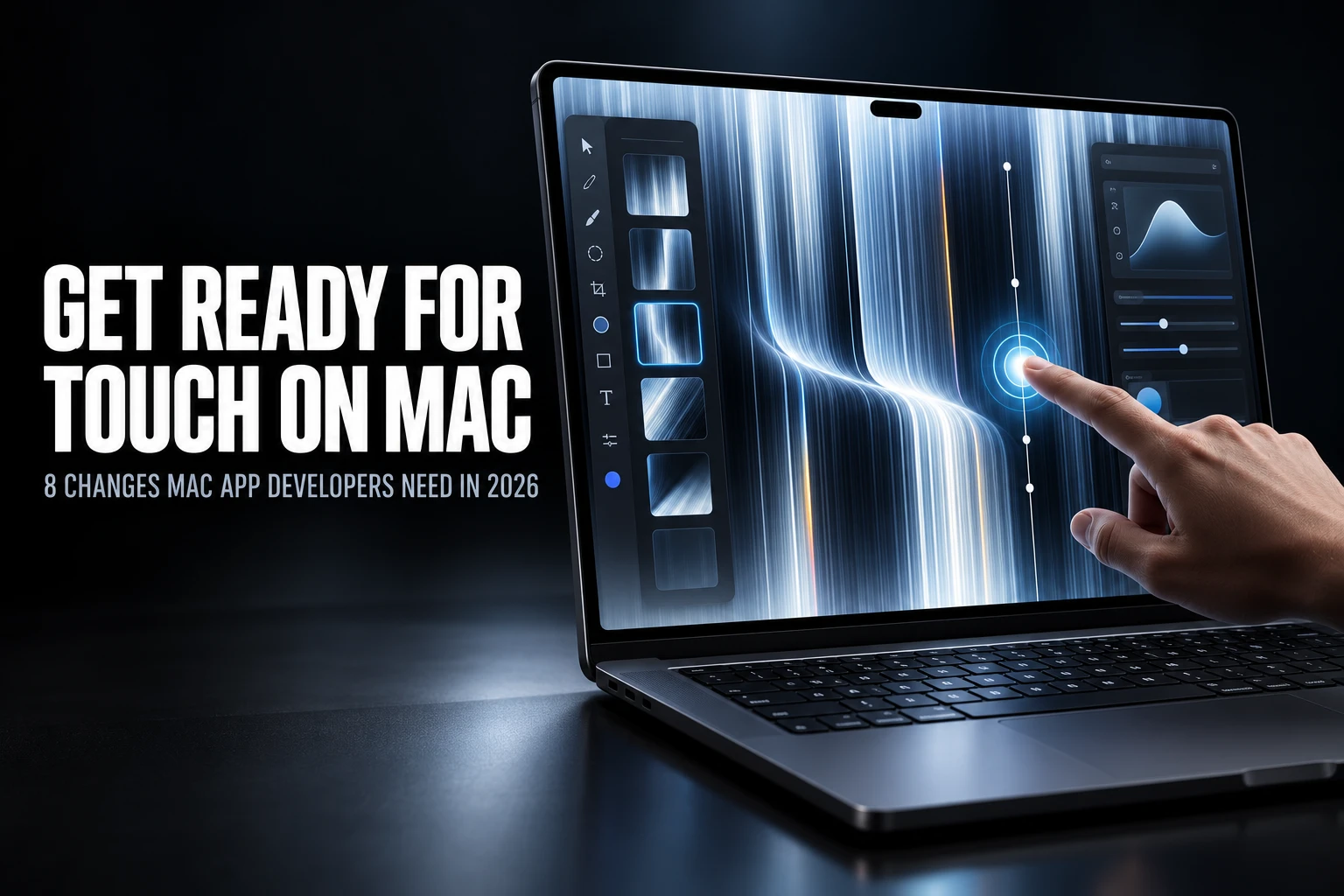
Summary. Apple announced the MacBook Pro with PROLED XDR Display on 28 October 2026, the first Mac with a touch display, and published a developer page with three tech talks on preparing apps for it. Prices start at $2,899 for the 14-inch model and $3,399 for the 16-inch model in the US, where machines arrive from 6 November. In India the 14-inch model starts at ₹3,49,900, and Apple India lists availability from 9 November. Apple says macOS "automatically translates touches into clicks", so standard controls respond to a tap on day one. Apple's documentation, already published, shows where apps fall short: mouse-handling overrides, custom tracking loops, hover-only actions, small hit targets and gestures that collide with the system's own. The fixes are control tracking events, gesture recognisers, 36-point touch targets and new macOS 27 APIs such as minimumNumberOfTouchesForScrolling, exclusiveGestureBehavior and disablesDirectTouchSystemGestures. The NSIsTouchNative Info.plist key is mainly for apps built on non-Apple UI frameworks, not a switch every app should flip. Mac apps can also create their own Live Activities in macOS 27. Only the Xcode 27.3 beta is still marked as coming soon, and Apple says an iPad connected over Sidecar can be used to test touch now.
About this article. This guide is for teams that build or maintain Mac apps in AppKit, SwiftUI, Mac Catalyst or a cross-platform framework. Facts were checked on 29 October 2026 against Apple Newsroom (US and India), Apple's Touch on Mac developer page, the three tech talks and their code listings, and Apple's developer documentation. Code samples are Apple's own listings from the tech talks. Researched with AI assistance and reviewed by our editorial team.
What Apple announced
The launch is a hardware product with an operating system change underneath it. The facts that matter for planning:
| Item | What Apple has said |
|---|---|
| Device | MacBook Pro with PROLED XDR Display, 14-inch (14.2-inch diagonal) and 16-inch (16.3-inch), with M5 Pro or M5 Max |
| Touch hardware | Touch sensor built into the display panel rather than layered on top, to reduce latency, and a redesigned hinge for stability while touching |
| Display | 3024 by 1986 pixels (14-inch) and 3472 by 2266 pixels (16-inch) at 254 ppi, refreshing from 10Hz to 120Hz |
| Default behaviour | macOS translates touches into clicks, so many existing apps work with touch straight away |
| Everyday gestures | Swipe to scroll, pinch to zoom, drag and drop, double-tap a window to fill the screen, flick a window to tile it |
| Dynamic Island | New home for Live Activities and Siri; Spotlight moves there only when Siri AI is available and enabled |
| Software | macOS 27 Golden Gate |
| US price and dates | From $2,899 (14-inch) and $3,399 (16-inch); pre-orders from 28 October in 30 countries and regions; arriving from Friday, 6 November |
| India price and dates | From ₹3,49,900 (14-inch) and ₹4,09,900 (16-inch) with M5 Pro; available from 9 November |
| Developer tools | Documentation and design resources are live; the Xcode 27.3 beta is coming soon |
Sources for the table: Apple Newsroom, the technical specifications page and Apple India's product page. If you also manage the Macs your team works on, our macOS 27 Golden Gate guide covers compatibility and IT preparation.
Two points shape the work. First, Apple keeps selling MacBook Pro models without the touch display, including a 14-inch model with M6 announced the day before, so most of your Mac users will not have touch for some time. Apple's design talk is explicit that keyboard and mouse stay the primary inputs and that apps should not be redesigned just for touch. Second, Apple named third-party apps that will take advantage of touch. Its list starts with productivity and collaboration apps such as Notion, Canva, Zoom and Microsoft Word, Excel, PowerPoint and Outlook, then moves to creative and music apps including Adobe Lightroom, DaVinci Resolve, Blender, Maxon Cinema 4D, Maxon ZBrush, Shapr3D and Algoriddim djay Pro, all arriving later this year. Once those ship, users will notice which apps still behave like a mouse app being poked with a finger.
What works on day one, and what does not
According to Apple's documentation, standard AppKit controls and gesture recognisers work with touch without changes, and the talk lists standard buttons, controls, tables, collections, split views, tabs and scrolling as touch native. For older custom code, AppKit emulates mouse events from a single finger tapping or dragging. That keeps the code running, but multi-finger gestures and individual touches only reach an app through gesture recognisers.
| How your app handles input | Behaviour with touch | What to do |
|---|---|---|
| Standard AppKit controls and gesture recognisers | Works with no changes | Test every window, sheet and popover |
| mouseDown overrides and custom tracking loops | A single-finger tap or drag is emulated; no multi-finger gestures | Move to gesture recognisers (changes 1 and 2) |
| Button, slider and other control subclasses that override mouse methods | AppKit falls back to a blocking tracking loop, even if the override calls super | Use control tracking events (change 1) |
| Custom gesture recogniser subclasses | One that never reaches a terminal state keeps its view, so the app looks frozen | Handle cancellation and always end the gesture |
| Controls that appear only on hover | A touch display has no hover | Give each hover action another route (change 4) |
The table summarises Apple's article on adopting gesture recognisers, which also suggests searching your project for tracking-loop calls and mouse-event overrides to find the code that needs attention.
The 8 changes Apple's talks and documentation ask for
The code below comes from Apple's listings for the Bring Touch to your Mac app tech talk, which Apple suggests watching alongside the Design for touch on Mac talk.
1. Replace mouse-handling overrides with control tracking events
A common AppKit pattern is subclassing NSButton and overriding mouseDown(with:) to know when tracking starts and ends. AppKit treats that override as a replacement for its own click handling and falls back to a tracking loop for the control. The fallback applies even when the override calls super, and overriding mouseDragged(with:) or mouseUp(with:) has the same effect. Observe the control's tracking events instead:
            // Use NSControl events to detect start and end of tracking
ignitionButton.addTarget(
    self,
    action: #selector(buttonDidStartTracking),
    for: [.trackingBegan, .trackingEntered]
)

ignitionButton.addTarget(
    self,
    action: #selector(buttonDidEndTracking),
    for: [.trackingExited, .trackingEndedInside]
)

ignitionButton.addTarget(
    self,
    action: #selector(buttonCancelledTracking),
    for: .trackingCancelled
)
Handle .trackingCancelled properly. The system can cancel tracking when a system gesture or a scroll takes over, and Apple's demo uses the event to revert unintended changes. Apple's documentation also adds .trackingEndedOutside to the end handler, and suggests .primaryActionTriggered when you only need to know that the control fired. Apple says most control events are available back to macOS 11, so this change does not force a new deployment target.
2. Move tracking loops to gesture recognisers
Custom canvases, timelines and node editors often run a modal loop that calls nextEvent(matching:until:inMode:dequeue:) until the mouse button is released, and nothing else in the app can respond while it runs. Apple's preferred fix is to replace the loop with gesture recognisers, such as a pan recogniser for drags. If a rewrite is too large for a point release, the talk shows a faster route: split the loop's logic into start, continue, end and cancel functions, keep the loop for the mouse, and add a touch-only recogniser that calls the same functions.
            // Add touch-only pan gesture recognizer
let touchRecognizer = NSPanGestureRecognizer(
    target: self,
    action: #selector(touchPan)
)

touchRecognizer.buttonMask = 0x0
touchRecognizer.allowedTouchTypes = .direct

wiringPanelView.addGestureRecognizer(touchRecognizer)
Setting buttonMask to zero means the recogniser ignores mouse and trackpad input, so the existing loop keeps handling them exactly as before. Direct touch is already the default for allowedTouchTypes, and setting it states the intent. The action method switches on the recogniser's state and calls the matching function, including cancelTracking() for the .cancelled state. If the loop starts a drag-and-drop session, pass the gesture recogniser to beginDraggingSession(items:gesture:source:) instead of the event.
3. Expand hit targets to 36 points for touch
Apple's design talk sets the macOS touch target at 36 points, the same physical size as 44 points on iOS. Framework controls already use it, invisibly, without changing their drawn size. Custom hit-testing needs the same treatment. In Apple's sample, only the touch path passes an expandHitRect flag, so a node in a dense editor stays small for the pointer and grows to at least 36 points on each axis for a finger. The listing marks the expansion with a comment rather than code, so that part is yours to write.
Apply the rule to resize grips, timeline markers, node ports and close buttons on custom tabs. When one recogniser covers a whole view, Apple's documentation shows how to filter touches by location with gestureRecognizer(_:shouldReceive:), so a finger that lands just outside a small grip still hits it.
4. Give every hover action another way in
Hover tracking with mouseMoved(with:) and NSTrackingArea applies to pointer input only, because a touch display has no hover. Apple's design guidance is more precise than simply showing everything:
- Tooltips and other information-only hover content do not need a touch equivalent.
- Actions that touch already handles, such as horizontal scrolling, need no extra button.
- During touch interaction, reveal only the most important hover actions for the content, and hide them again when the person moves on.
- Duplicate hover actions elsewhere in the interface, usually in the item's context menu.
For essential controls that stay hidden until hover, the talk recommends a touch-only click recogniser that shows them briefly after a tap, rather than making them permanently visible.
5. Stop relying on currentEvent, swipe tracking and mouse-down menus
Because AppKit now routes control interactions through gesture recognisers, NSApp.currentEvent no longer reliably returns the event that triggered an action. Read NSEvent.modifierFlags and pressedMouseButtons instead, and remember that a touch does not register as a pressed mouse button. AppKit does not translate touch swipes either, so code built on trackSwipeEvent needs its own swipe handling, and back and forward page swipes should check isTouchSwipeNavigationEnabled first because people can turn swipe navigation off.
Context menus are the easy win. Instead of presenting a menu from mouseDown(with:), set the view's menu or override menu(for:). AppKit then presents it for a Control-click and for touch-and-hold.
6. Decide how touch scrolling behaves on canvases
On a drawing or editing surface, one finger usually means draw or move, not scroll. Apple's sample makes the enclosing scroll view require two touches:
            // Modify touch scrolling properties
decoratingView.enclosingScrollView?.minimumNumberOfTouchesForScrolling = 2
Lists, documents and web content should keep one-finger scrolling, which is what people expect from the system. macOS 27 also adds isTouchScrollingEnabled and maximumNumberOfTouchesForScrolling on scroll views, and NSRefreshController for pull to refresh.
7. Allow simultaneous touches where the interface needs them
By default, only one view can be interacted with at a time. Apple calls this gesture exclusivity, and it exists so that apps written around modal tracking loops are not confused when several controls move at once. For a mixer, instrument or control panel where people genuinely touch two things together, opt the container out:
            // Simultaneous sliders
stoveControlsView.exclusiveGestureBehavior = .notExclusive
Apple suggests turning exclusivity off gradually as parts of the app become ready for several inputs, which is how AppKit's own colour panel works. The property is new in macOS 27, and an app-wide NSViewGestureRecognizerIsExclusive Info.plist key controls the default.
8. Disable system gestures only while they are critical
macOS reserves multi-finger touch gestures on the display: three-finger swipes for Mission Control, App Exposé and switching Spaces, a pinch with the thumb and three fingers for apps and the desktop, edge swipes for the menu bar, Dock, Notification Center and Control Center, and a swipe over the Dynamic Island for Siri. If a full-surface instrument, game or canvas needs those touches, each framework has an opt-out:
            // Disabling system gestures
stoveControlsView.window?.disablesDirectTouchSystemGestures = true

// Mac Catalyst API
extension UIViewController {
    var prefersDirectTouchSystemGesturesDisabled: Bool { get }
}

// SwiftUI API
View.directTouchSystemGesturesDisabled()
Apple's advice is to disable system gestures per window, only when the interaction they would block is critical, and ideally only while that part of the interface is on screen. Its demo, a game, disables them only while a time-critical control panel is visible. Reference pages for these three APIs were not yet published on 29 October 2026, so check them when the Xcode 27.3 beta arrives.
SwiftUI, Mac Catalyst and non-Apple UI frameworks
The talk opens with how touch works across frameworks. Here is how the published guidance maps:
| Your app is built with | What happens with touch | What to change |
|---|---|---|
| AppKit | Standard controls are touch native; custom mouse code is emulated | The eight changes above |
| SwiftUI | Existing gestures work with touch | Use the new gesture input kinds to tell direct touch from pointer input where behaviour should differ; disable system gestures only where critical |
| Mac Catalyst | Existing UIKit gestures work | Use touch type and allowed touch types to separate mouse and touch; check Mac-specific layouts for targets under 36 points |
| Flutter, React Native for macOS, Electron and other non-Apple frameworks | AppKit applies generic mouse emulation to each window | Add native touch handling, then set NSIsTouchNative |
In SwiftUI, GestureInputKinds is new in the 27 releases and includes .directTouch, .indirectTouch, .pencil and .pointer options. In Mac Catalyst, the talk points to the existing UITouch.touchType and UIGestureRecognizer.allowedTouchTypes APIs.
When AppKit detects a non-Apple UI framework, it cannot tell what each part of the content does, so it applies a generic set of mouse emulations to every window: one-finger scrolling with momentum, clicks, drags after a short hold, and pinch for rotation and magnification. Once such an app handles touch input itself, it declares that in Info.plist so AppKit stops injecting the emulation recognisers:
            <key>NSIsTouchNative</key>
<true/>
Apple's reference page for the key, published for macOS 27, says most AppKit apps do not need it; it is intended for apps that embed a non-AppKit rendering or input framework with their own touch pipeline. We found no announcement of native macOS touch support from Flutter, React Native for macOS or Electron as of 29 October 2026, so apps built on them will rely on Apple's emulation for now. Check each framework's release notes before planning custom gesture work.
Apple also says developers can test how touch performs in their iOS and iPadOS apps directly on the new display. For the iPhone side of this year's interface changes, see our guide to vertical bars and the Dynamic Island in iOS 27.1, and for tooling, our overview of Xcode 27 and Swift 6.4.
Live Activities come to Mac apps
The third talk, Bring Live Activities to Mac, is not about touch, but it arrives with the same launch. Since macOS Tahoe 26, Live Activities from a nearby iPhone have appeared in the Mac menu bar through iPhone Mirroring. In macOS 27 Golden Gate, Mac apps can create their own. They blend into the Dynamic Island on a Mac that has one, so far only the new MacBook Pro, and appear in the menu bar on other Macs and displays.
The model is the one iOS developers know. Define ActivityAttributes with a ContentState, build the presentations with ActivityConfiguration (a menu bar expanded view, plus Dynamic Island expanded regions and compact and minimal layouts), then start, update and end the activity with ActivityKit:
            import ActivityKit

struct CurtainActivityAttributes: ActivityAttributes {
    let scenesPerAct: [Int]
    let showTitle: String

    struct ContentState: Codable, Hashable {
        var isPlaying: Bool
        var curtainOpen: Bool
        var actIndex: Int
        var sceneIndexInAct: Int
    }
}
Interactive buttons call App Intents through Button(intent:), and Apple's listing ends an activity with await activity.end(nil, dismissalPolicy: .immediate). Apple says a universal app with an existing iOS Live Activity runs it on the Mac without porting code. Apple has not published a minimum macOS point release, and the ActivityKit reference does not yet list macOS availability, so confirm both before you ship. Good candidates on the Mac include export and render progress, builds and test runs, uploads, timers and meeting countdowns.
Dates to plan around
| Date | What happens |
|---|---|
| 28 October 2026 | MacBook Pro with PROLED XDR Display announced; pre-orders open in 30 countries and regions |
| 6 November 2026 | Availability in the US |
| 9 November 2026 | Availability in India, according to Apple India's product page |
| 18 November 2026, 9 to 10 a.m. PT | Touch on Mac group lab, online; 10:30 to 11:30 p.m. IST the same day |
| 19 November 2026, 6 to 7 p.m. PT | Touch on Mac group lab, online; 7:30 to 8:30 a.m. IST on 20 November |
| Coming soon | Xcode 27.3 beta with the latest SDKs |
The lab sign-up links are on Apple's Touch on Mac developer page. Bring specific questions: a custom control, a gesture conflict or a tracking loop you are unsure how to refactor.
Who should prioritise touch first
Not every Mac app needs the same effort. A practical way to rank the work:
| App type | Priority | Why |
|---|---|---|
| Drawing, photo, video, 3D and design tools | High | Direct manipulation is the clearest reason to touch the screen, and Apple lists Lightroom, DaVinci Resolve, Blender and Shapr3D among the apps adopting touch |
| Music and performance apps | High | Instruments and mixers depend on simultaneous touches; Logic Pro gains a Multi-Touch polyphonic keyboard |
| Productivity and collaboration apps | Medium to high | Apple's list of touch-ready apps starts with Notion, Canva, Zoom and Microsoft's apps |
| Business apps with dense tables and forms | Medium | Taps work, but small targets and hover actions will frustrate people |
| Apps built on Flutter, React Native or Electron | Medium | Emulation works today; native touch depends on the framework |
| Developer tools and keyboard-first utilities | Low to medium | Fix hit targets and hover-only actions; skip custom gestures |
| Any app with progress people wait on | Medium | Live Activities in the menu bar and Dynamic Island are a separate opportunity |
A testing checklist
- Search the project for
mouseDown,mouseDraggedandmouseUpoverrides,nextEvent(matching:until:inMode:dequeue:)andtrackEvents(matching:timeout:mode:handler:)calls, and uses ofcurrentEventin action methods.
- List every feature reachable only by hover.
- Measure custom hit targets against the 36-point minimum.
- Map your custom multi-finger gestures against the system gestures.
- Confirm every gesture recogniser action handles the cancelled state, and every custom recogniser always reaches a terminal state.
- Use touch in every window, sheet and popover: taps, one-finger drags, text selection, scrolling, pinch and rotate.
- Re-test every flow with trackpad and keyboard so touch work does not regress pointer users.
- Test with VoiceOver, Full Keyboard Access, AssistiveTouch and Touch Accommodations; Apple lists the last two among the new MacBook Pro's accessibility features.
- Test now with an iPad connected over Sidecar, which Apple says gives you the touch features with its latest macOS beta and developer tools, then on the real display when you can.
- Book a group lab slot with your two hardest questions.
How eCorpIT can help
eCorpIT is a Gurugram-based technology organisation, founded in 2021, assessed at CMMI Level 5 and MSME certified, with senior-led engineering teams working across AWS, Microsoft and Google platforms. Our iOS and macOS developers audit Mac apps for touch readiness, replace mouse overrides and tracking loops with gesture recognisers, rework hover-only actions and dense layouts, and add Live Activities that share code with your iPhone app. Talk to us at /contact-us/.
Last updated: 29 October 2026.